What You're Actually Asking
Searching for "file compression tools" usually means one of two things, and the right answer depends on which problem you're solving. Most people conflate these categories, but they serve fundamentally different purposes.
File Optimizers: Shrink at the Source
File optimizers reduce the actual file's internal data. They remove redundancy, optimize encoding, and intelligently reduce quality where it won't be noticed. The result is a permanently smaller file—a 5 MB image becomes a 500 KB image.
This is what you need when you want to email photos without hitting attachment limits, speed up a website by reducing image sizes, or free up storage by shrinking documents. The file itself changes.
File Archivers: Bundle into Containers
File archivers package multiple files into a compressed container (ZIP, RAR, 7Z). The original files remain unchanged inside—a 5 MB image inside a ZIP is still 5 MB when extracted. The compression applies to the container, not the contents.
This is what you need when you want to bundle a folder of files for transfer, create a backup archive, or add encryption to a collection of documents.
Key Difference
Optimizers permanently change the file to make it smaller. Archivers wrap files in a container without modifying them. If you extract a file from a ZIP, it's the same size as when you put it in.
Quick Decision Guide
| If you need to... | Use a... | Example Tools |
|---|---|---|
| Make images smaller for email or web | File Optimizer | Compress.FAST, TinyPNG, Squoosh |
| Shrink PDFs or Office documents | File Optimizer | Compress.FAST |
| Bundle files into a single download | File Archiver | 7-Zip, WinRAR, WinZip |
| Create an encrypted backup | File Archiver | WinRAR, WinZip, PeaZip |
| Both optimize AND bundle files | Both (optimize first) | Compress.FAST + 7-Zip |
For most people searching "best compression tools," the answer is an optimizer. You want smaller files, not a container to put them in.
Best File Optimizers
These browser-based tools permanently reduce file sizes by intelligently removing unnecessary data. They're the right choice when you need smaller images for web performance, documents that fit email limits, or files that take up less storage.
1. Compress.FAST
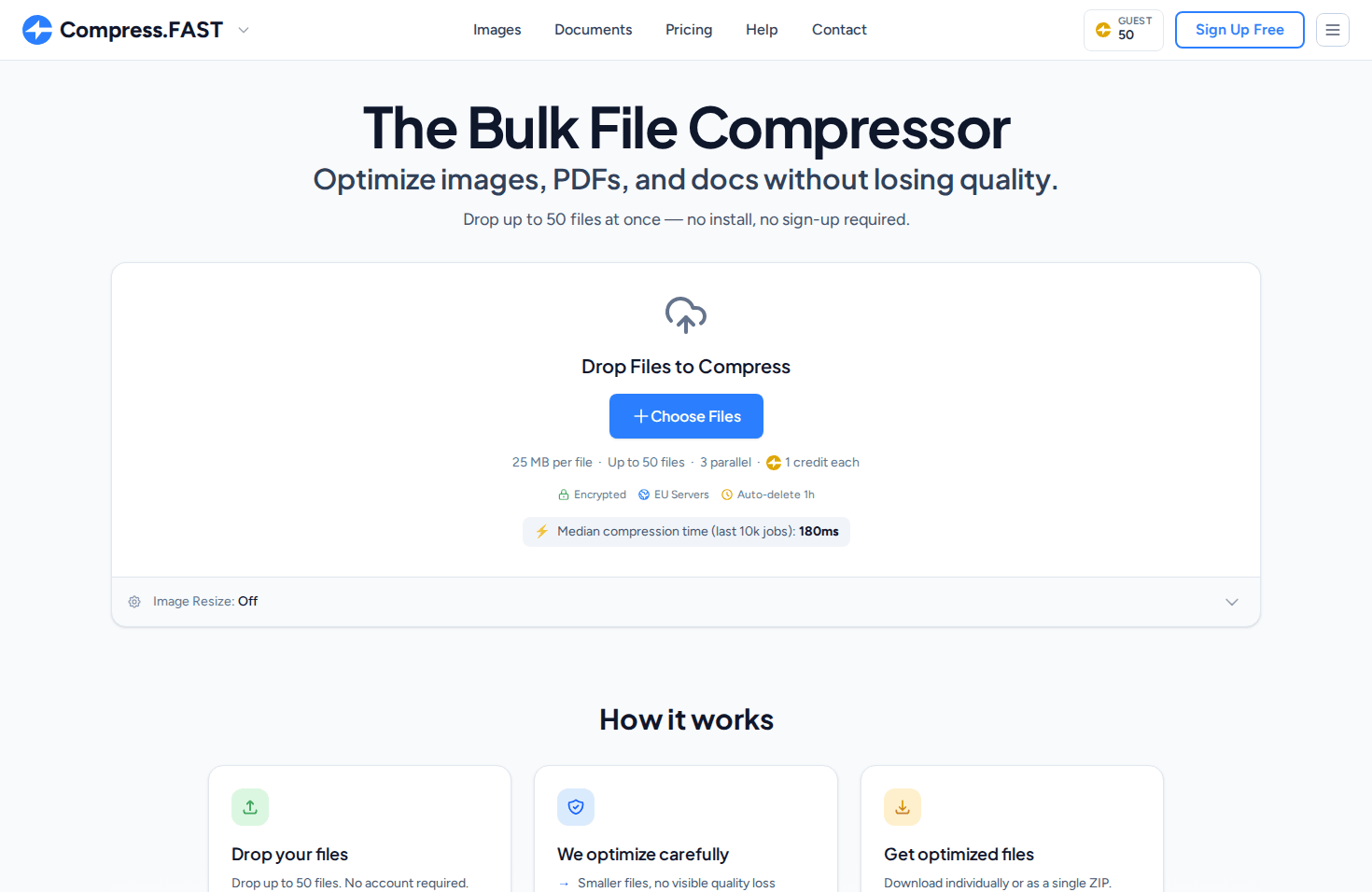
Compress.FAST is a browser-based file optimizer designed for speed, privacy, and broad format support. It handles images, PDFs, Word documents, and PowerPoint files—a combination that distinguishes it from image-only tools.
The platform processes up to 1,000 files at once with a median compression time of 172 milliseconds per file. Files are processed on encrypted EU servers (TLS 1.3 in transit, AES-256 at rest) and automatically deleted after one hour.
- Format Support — Over 40 formats including JPG, PNG, WebP, AVIF, HEIC, PDF, DOCX, and PPTX. Also supports 26 RAW camera formats.
- Batch Size — Up to 1,000 files at once on Pro
- Document Compression — Unique support for PDF, Word, and PowerPoint optimization—not just images
- Quality Verification — Before/after slider to verify compression results
Why It Stands Out
Compress.FAST fixes files at the source. A 5 MB image becomes a 500 KB image permanently—it's not wrapped in a container. This matters for web performance, email attachments, and storage. The document support (PDF, Word, PowerPoint) is rare among browser-based tools.
Pricing: 50 free credits daily without signup. Pro and pay as you go unlock higher limits and bigger batches.
Website: compress.fast
2. TinyPNG
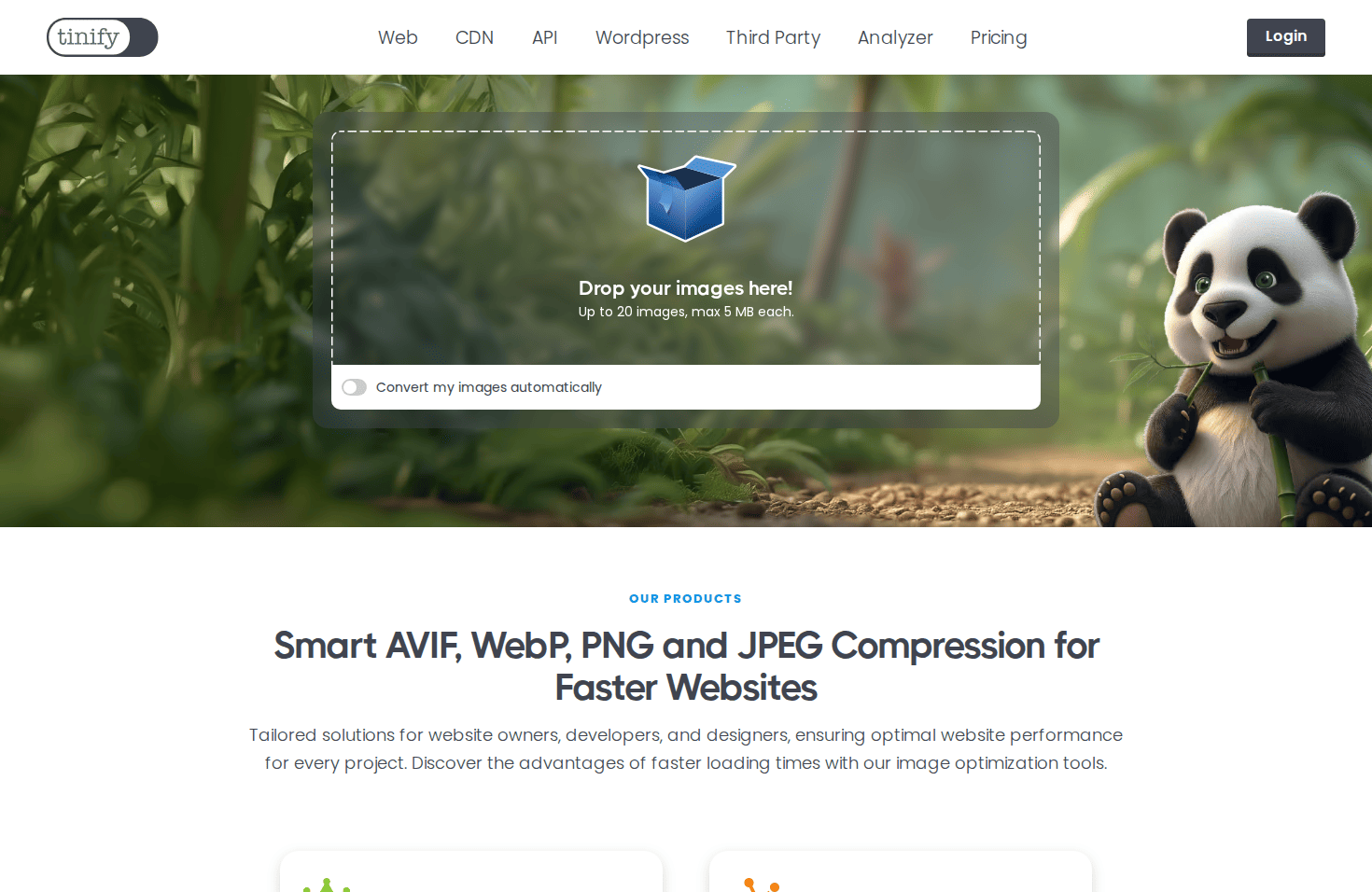
TinyPNG is the industry standard for web image optimization. It uses smart lossy compression that reduces PNG and JPG file sizes with minimal visible quality loss. The panda mascot is instantly recognizable to web developers.
The tool's strength is its compression quality—images are often 60-80% smaller with differences imperceptible to most viewers. It also supports WebP and AVIF output formats.
- Format Support — PNG, JPG, WebP, AVIF
- Batch Size — 20 files (free), unlimited with Pro ($39/yr) or Ultra ($149/yr)
- API Access — Developer API available for automation
- Plugins — WordPress, Photoshop, and other integrations
Pricing: Free for up to 20 files at once. Pro ($39/yr) and Ultra ($149/yr) plans offer unlimited batch sizes and larger file limits.
Website: tinypng.com
3. Squoosh
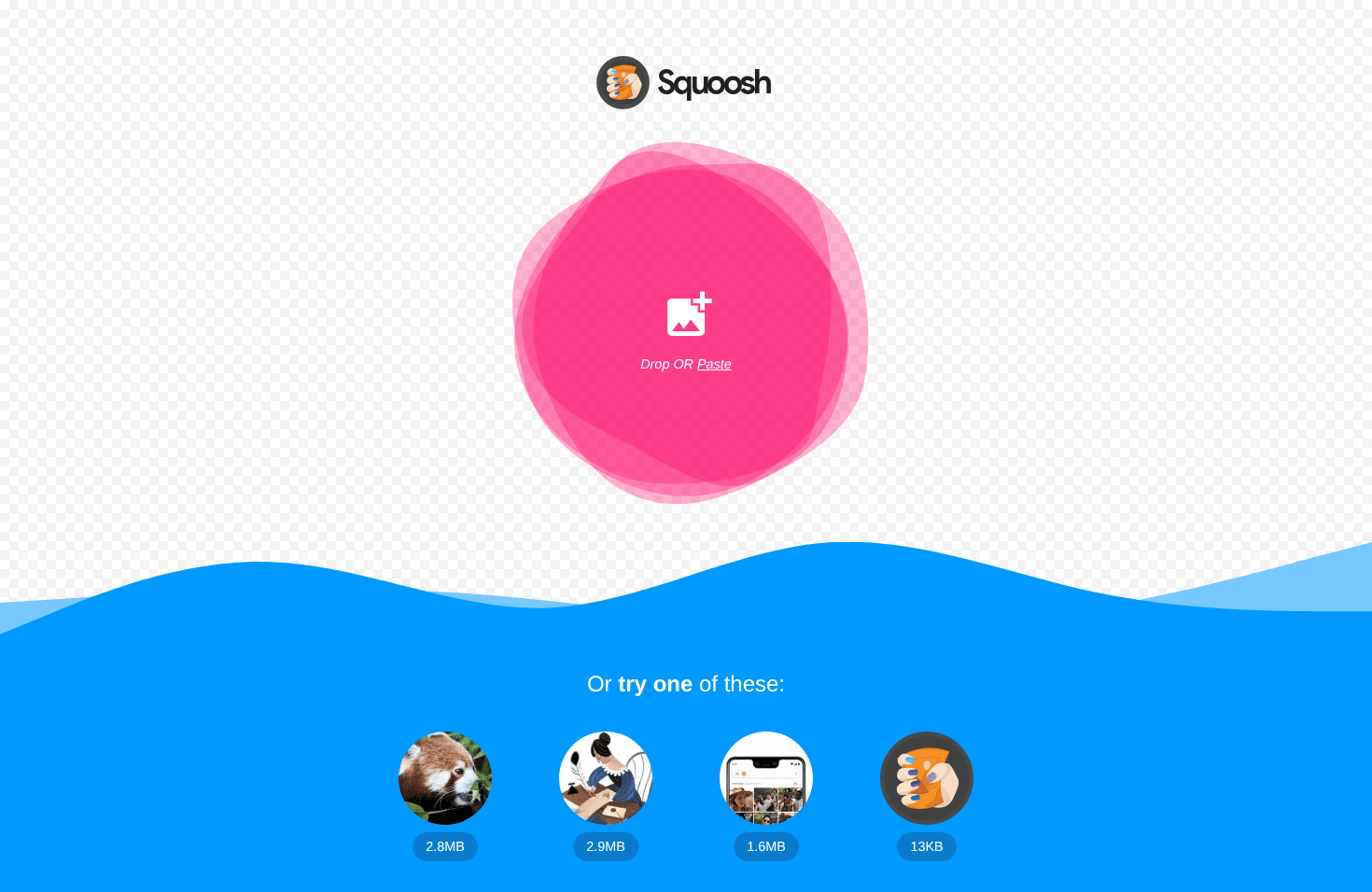
Squoosh is a free image optimizer from the Google Chrome team. Its key differentiator is that all processing happens locally in your browser—files never leave your device. This makes it the most private option available.
The tool excels at format comparison. You can view the same image in different formats (WebP, AVIF, MozJPEG) side-by-side with a quality slider. This is invaluable for choosing the optimal format for your use case.
- Privacy — 100% client-side—files never uploaded
- Format Options — MozJPEG, WebP, AVIF, OxiPNG, and more
- Advanced Controls — Fine-grained quality, resize, and codec settings
- Batch Size — Single file only (no batch processing)
Best For
Squoosh is ideal when you need maximum privacy, want to compare format options, or need precise control over compression settings. It's not suitable for batch processing—use it for individual files where quality matters most.
Pricing: Completely free, open-source.
Website: squoosh.app
Best File Archivers
These desktop applications bundle multiple files into compressed containers. Use them when you need to package files for transfer, create backups, or add encryption. Remember: they don't optimize the files inside—they compress the container.
4. 7-Zip
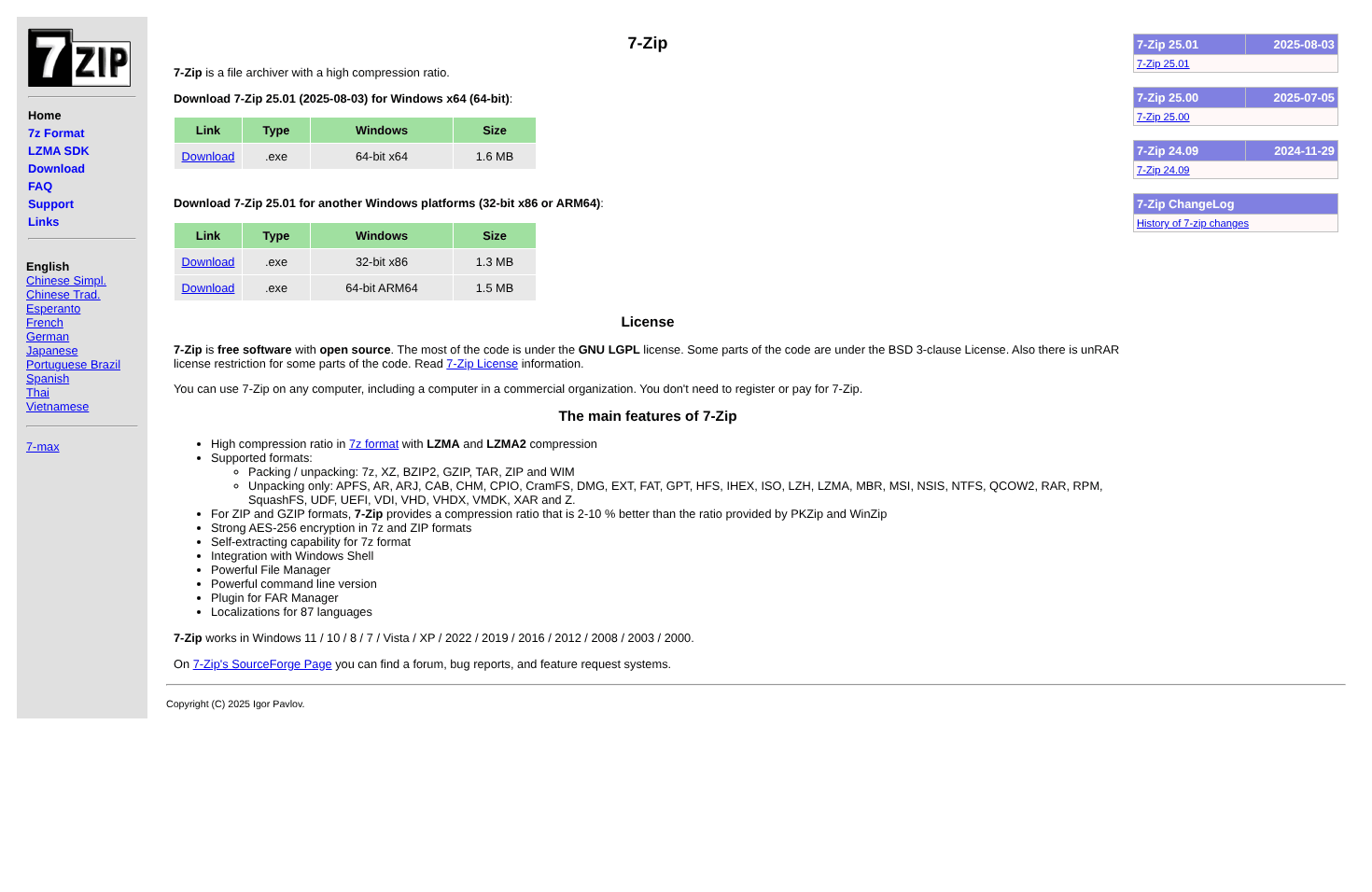
7-Zip is a free, open-source archiver known for excellent compression ratios. Its proprietary 7z format uses LZMA and LZMA2 algorithms that often produce smaller archives than standard ZIP files.
The interface is minimal and functional. It integrates into the Windows shell for right-click compression and extraction. While there's no official macOS GUI, ports like Keka use its algorithms.
- Price — Free, open-source (GNU LGPL)
- Best Format — 7z for maximum compression, ZIP for compatibility
- Encryption — AES-256
- Platforms — Windows, Linux (command-line for macOS)
Website: 7-zip.org
5. WinRAR
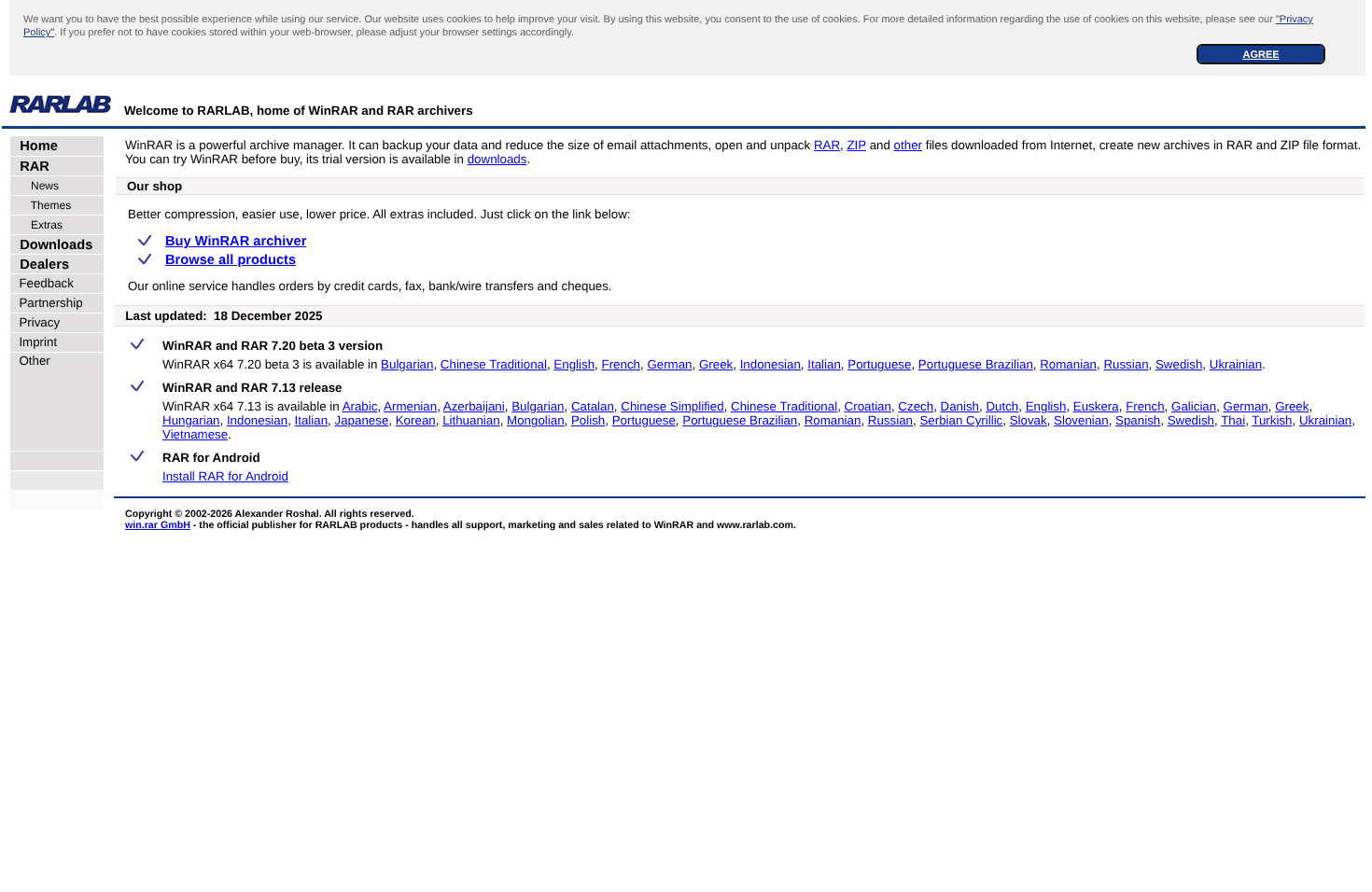
WinRAR is known for its proprietary RAR format, which often achieves higher compression than ZIP. It excels at splitting large archives into multiple volumes and adding recovery records to protect against corruption.
The recovery record feature is valuable for long-term storage or transfers over unreliable networks. If part of an archive becomes corrupted, the recovery record can repair it.
- Price — 40-day trial, then $29 one-time purchase (perpetual license)
- Best Format — RAR5 for compression and recovery features
- Unique Feature — Recovery records for archive repair
- Multi-Volume — Split archives across multiple files
Website: rarlab.com
6. WinZip
WinZip has evolved into a comprehensive suite for enterprise environments. It integrates with cloud services (OneDrive, Google Drive, Dropbox) and offers automation features for office workflows.
Enterprise versions add compliance features like FIPS 140-2 support. The interface is more complex than minimal tools, reflecting its broader feature set.
- Price — 21-day trial, subscription-based pricing
- Best For — Enterprise environments with cloud integration needs
- Encryption — AES-256 with FIPS 140-2 compliance
- Automation — Built-in backup and scheduling features
Website: winzip.com
7. PeaZip
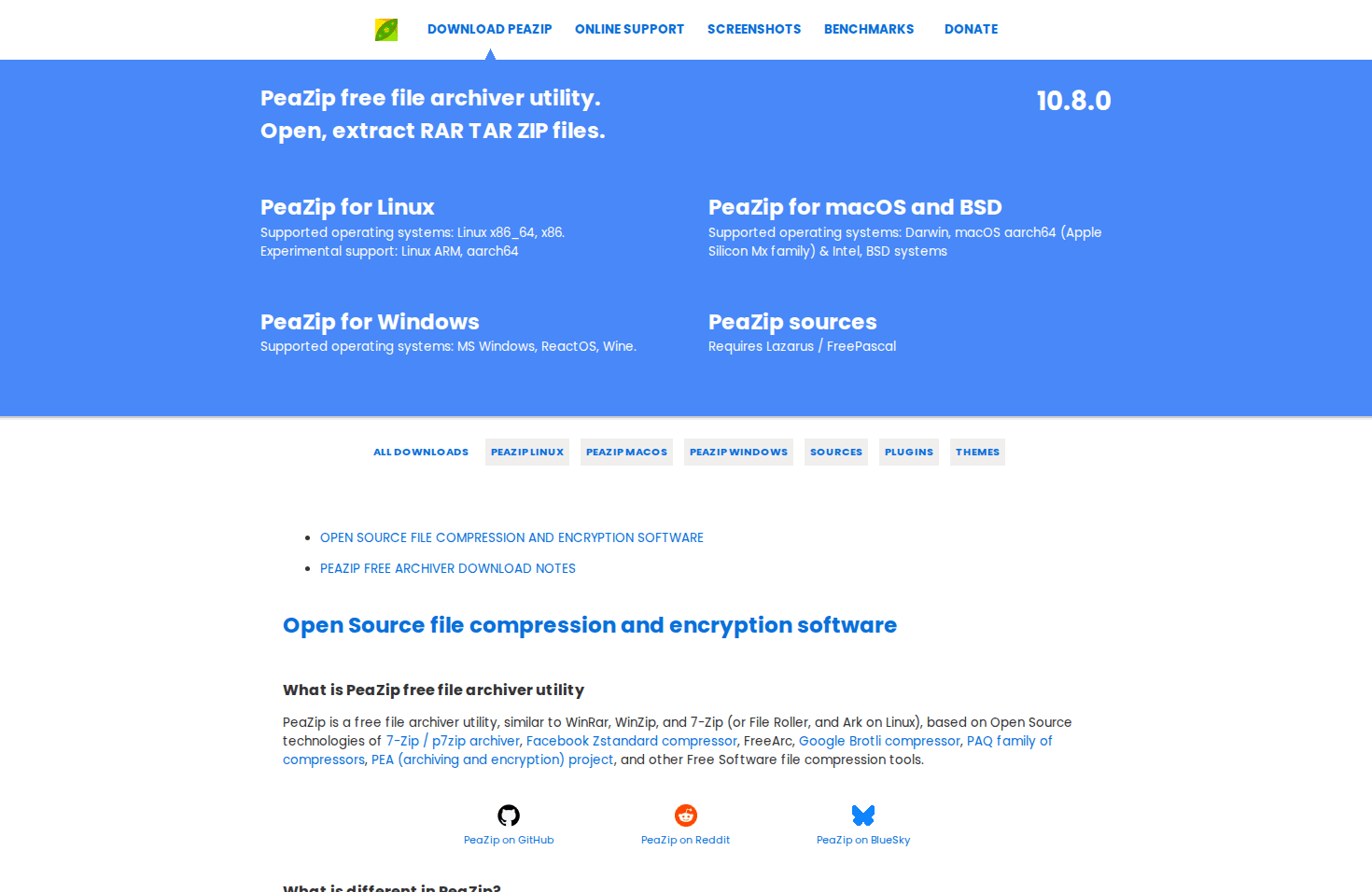
PeaZip is a free, open-source archiver supporting over 200 formats. It's cross-platform (Windows, macOS, Linux) and includes security features like encrypted archives and secure file deletion.
A key advantage is portability—you can run PeaZip from a USB drive without installation. It also supports modern codecs like Zstd and Brotli for improved compression.
- Price — Free, open-source (LGPLv3)
- Format Support — 200+ archive formats
- Portable — Runs from USB without installation
- Security — Encrypted archives, secure deletion
Website: peazip.github.io
8. Bandizip
Bandizip is a modern archiver for Windows and macOS that balances features with fast performance. It uses hardware acceleration for AES-256 encryption, making it notably quick at creating encrypted archives.
The free version handles most needs but displays ads. The Professional edition removes ads and adds features like a password manager and archive repair tools.
- Price — Free with ads, Pro for one-time purchase
- Speed — Hardware-accelerated encryption
- Portable — Available as portable build
- Platforms — Windows, macOS
Website: bandisoft.com/bandizip
9. Keka (macOS)

Keka is the go-to archiver for macOS users who want more than the built-in Archive Utility. It provides a polished, native experience with drag-and-drop compression and extraction from Finder.
It creates 7Z, ZIP, TAR, and ZSTD archives and extracts a wide range of formats including RAR and DMG. Purchasing through the Mac App Store supports the developer, though a free version is available from the website.
- Price — Free from website, paid on Mac App Store
- Best For — macOS users wanting native integration
- Create Formats — 7Z, ZIP, TAR, ZSTD, and more
- Extract Formats — RAR, DMG, ISO, and many others
Website: Mac App Store
10. The Unarchiver (macOS)
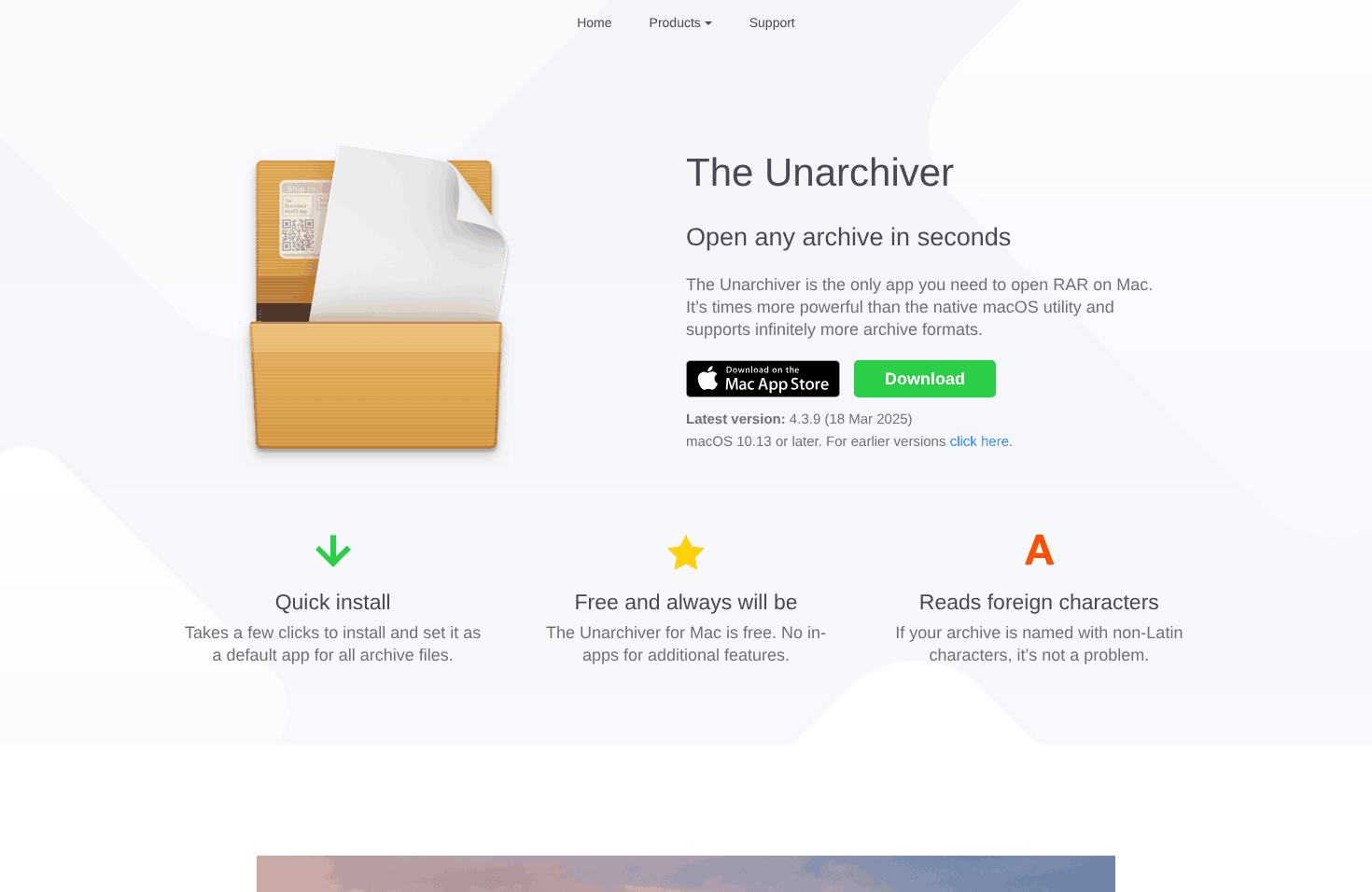
The Unarchiver is a free, single-purpose utility that excels at one thing: opening archives. It handles formats the built-in macOS utility struggles with, including RAR5, 7z, and legacy formats like StuffIt.
The interface is minimal—double-click a file, and it extracts. This simplicity makes it ideal for users who just need to open downloaded archives without creating them.
- Price — Free
- Purpose — Extraction only (no archive creation)
- Specialty — Legacy and obscure format support
- Filename Handling — Correctly handles non-Latin characters
Website: theunarchiver.com
How to Choose the Right Tool
Your choice depends entirely on your goal. Here's a practical decision framework based on common use cases.
| Your Goal | Tool Type | Recommended |
|---|---|---|
| Shrink images for email | Optimizer | Compress.FAST (batch) or TinyPNG |
| Optimize images for web/Lighthouse | Optimizer | TinyPNG or Squoosh (format comparison) |
| Compress PDFs for sharing | Optimizer | Compress.FAST |
| Shrink Word/PowerPoint files | Optimizer | Compress.FAST |
| Batch compress 100+ images | Optimizer | Compress.FAST (1,000 file batches) |
| Bundle files for transfer | Archiver | 7-Zip (free) or WinRAR |
| Create encrypted backup | Archiver | WinRAR or WinZip |
| Extract downloaded archives | Archiver | 7-Zip (Windows) or The Unarchiver (Mac) |
| Maximum privacy (no upload) | Optimizer | Squoosh (client-side only) |
Pro Tip: Use Both
For the smallest possible archive, optimize files first, then archive them. A folder of images compressed with Compress.FAST and then zipped with 7-Zip will be significantly smaller than just zipping the originals.
Feature Comparison Table
Here's a complete comparison of all 10 tools across key features.
| Tool | Type | Price | Batch Size | Documents |
|---|---|---|---|---|
| Compress.FAST | Optimizer | Free / Paid | 50–1,000 | PDF, Word, PPT |
| TinyPNG | Optimizer | Free / Pro | 20 / Unlimited | Images only |
| Squoosh | Optimizer | Free | 1 file | Images only |
| 7-Zip | Archiver | Free | Unlimited | N/A (bundles) |
| WinRAR | Archiver | Trial / $29 | Unlimited | N/A (bundles) |
| WinZip | Archiver | Subscription | Unlimited | N/A (bundles) |
| PeaZip | Archiver | Free | Unlimited | N/A (bundles) |
| Bandizip | Archiver | Free / Pro | Unlimited | N/A (bundles) |
| Keka | Archiver | Free / Paid | Unlimited | N/A (bundles) |
| The Unarchiver | Archiver | Free | N/A (extract) | N/A (extract) |
Key insight: Optimizers and archivers serve different purposes. Compress.FAST is the only tool that handles both images and documents while providing batch processing at scale.
Frequently Asked Questions
Here are direct answers to common questions about file compression tools.
What's the difference between compression and archiving?
Compression (optimization) permanently reduces a file's size by removing unnecessary data. A 5 MB JPG becomes a 500 KB JPG. The file itself is changed.
Archiving packages multiple files into a container (ZIP, RAR, 7Z). The files inside remain unchanged—when you extract them, they're the same size as before. The container may be compressed, but the individual files aren't optimized.
Do file optimizers reduce quality?
It depends on the type of compression. Lossy compression (used for photos) removes some data to achieve smaller sizes. With quality settings around 80-85%, the difference is imperceptible to most viewers while achieving 60-80% size reduction.
Lossless compression (used for PNGs and documents) reduces size without any quality loss. The file is mathematically identical before and after compression.
Tools like Compress.FAST provide before/after sliders so you can verify quality before downloading. Learn more about lossy vs lossless compression.
Which is faster: optimizing or archiving?
Modern file optimizers are typically faster for their intended purpose. Compress.FAST processes files with a median time of 172ms per file. Squoosh is instant because it processes locally.
Archivers vary by compression level. Creating a quick ZIP is fast; creating a maximum-compression 7z archive is slow. The key difference is that optimizers are designed for speed, while archivers trade speed for compression ratio at higher settings.
Can I use both together?
Yes, and this is the optimal approach for the smallest possible archive. First, optimize your files (compress images, shrink PDFs), then bundle them with an archiver.
A folder of images processed through Compress.FAST and then zipped with 7-Zip will be significantly smaller than zipping the originals. The optimizer reduces each file's size; the archiver then bundles them efficiently.
Compress.FAST handles image and document optimization on encrypted EU-based servers and deletes your files automatically—fast, simple, and secure.

Stewart Celani
Founder
15+ years in enterprise infrastructure and web development. Stewart built Tools.FAST after repeatedly hitting the same problem at work: bulk file processing felt either slow, unreliable, or unsafe. Compress.FAST is the tool he wished existed—now available for anyone who needs to get through real workloads, quickly and safely.
Read more about Stewart